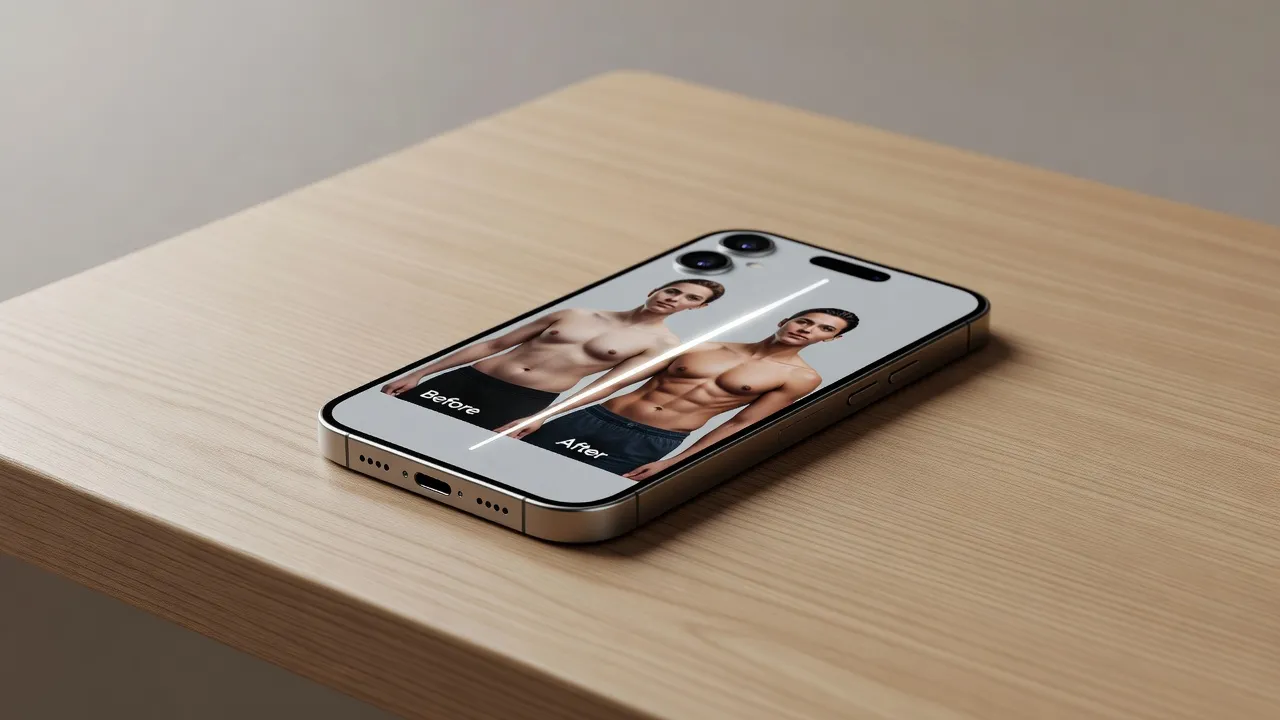
Creating before and after photos requires either a side-by-side collage maker, an interactive slider widget, or an AI photo generator that predicts your target transformation. The single variable that dictates which tool you should choose is your end output: website publishers need responsive HTML sliders, social media creators need aligned photo collages, and fitness beginners need predictive body shape tools to visualize progress.
The question "What is your goal for the photos?" leads to three paths:
-
Publish on Website leads to using a JS Slider Widget (Juxtapose, Twenty20)
-
Social Media Post leads to using a Grid Collage App (Canva, Photopea)
-
Visualize Gym Goal leads to using an AI Body Editor (BodyBlend AI)
What are the best free before and after photo comparison slider apps?
The best free before and after photo comparison slider apps include JuxtaposeJS for web embeds, Diff- Before & After for video transitions, and Image Compare Slider plugins for CMS platforms. These tools let you place two photos directly on top of each other, introducing an interactive vertical split-line that visitors can slide left and right.
If you are displaying visual changes on a blog or portfolio, slider tools offer far higher engagement than static side-by-side frames. Viewers like having physical control over the comparison line to inspect specific details like posture, lighting, or muscle definition.
For general web use, lightweight JavaScript libraries remain the top choice. They load fast, work across desktop and mobile screens, and do not require heavy visual editors to generate.
Are there free before and after photo slider apps for iPhone and Android?
Yes, free before and after photo slider apps exist for both iPhone and Android, including layout apps like Split Pic, Before & After Video Editor, and Frame Lapse. These applications run natively on mobile operating systems and convert static images into interactive split screens or animated MP4 video loops.
Most mobile progress tracking apps include three main editing features:
- Camera alignment grids: Semi-transparent "ghost" overlays that help you match your pose, distance, and angle during weekly check-in photos.
- Video reveal generators: Automatic rendering that slides the line across your two images and exports the movement as a high-definition video reel.
- Side-by-side frames: Static grid layouts designed to fit vertical ratios for Instagram Stories or TikTok.
If you haven't built your physical transformation yet, traditional slider apps have a big limitation: they require you to already own two photos. If you only have a starting picture, an AI tool like BodyBlend can generate the target physique photo for your comparison slider before you even begin your training program.
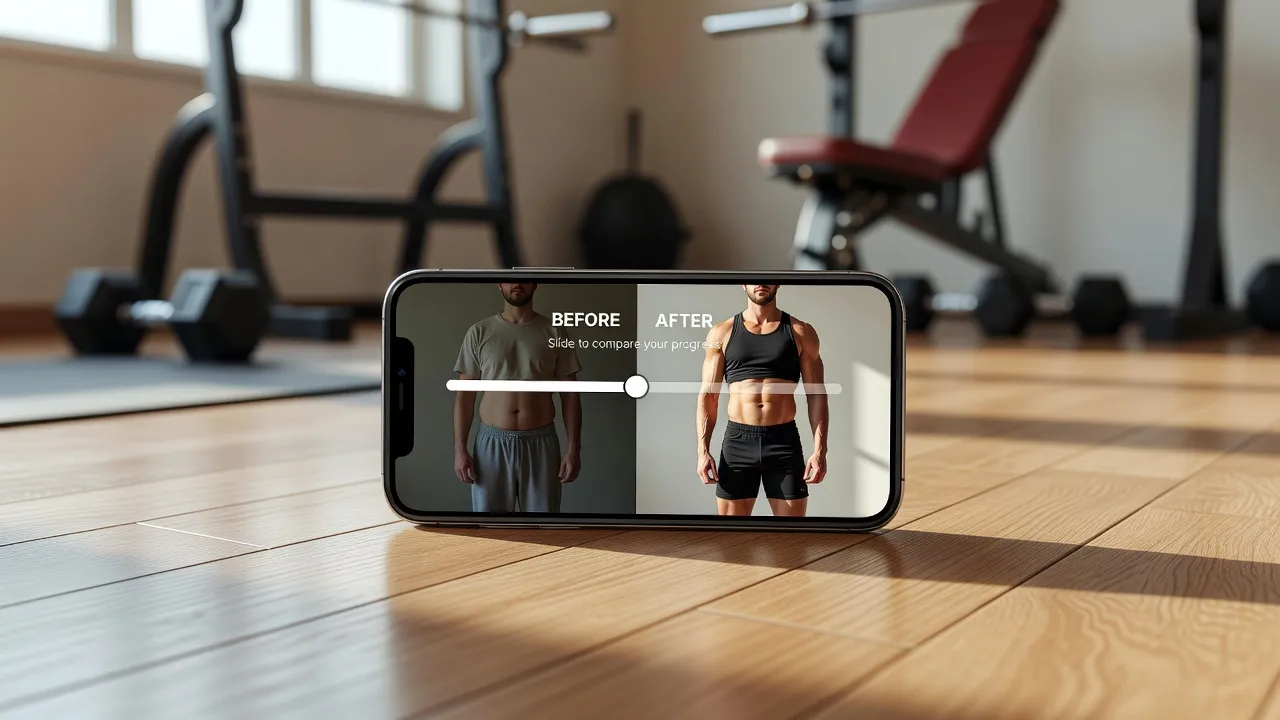
Is there a free online image comparison slider using Juxtapose or TwentyTwenty?
Yes, the JuxtaposeJS project page provides a free open-source image slider built by Northwestern University's Knight Lab. JuxtaposeJS works directly in any desktop browser and lets you paste two image URLs to construct a responsive script tag without writing custom code.
To create a slider using JuxtaposeJS:
- Upload your "before" and "after" photos to a public web server or image host.
- Copy the direct image URLs into the online generator fields.
- Add custom labels like "Week 1" and "Week 12" to frame the timeline.
- Copy the generated iframe or JavaScript snippet and paste it into your site's HTML editor.
The TwentyTwenty script functions similarly, serving as the core engine behind many desktop web widgets. Both libraries ensure that your images scale down fluidly on smaller smartphone displays without distorting aspect ratios.
Is there a Twenty20 Image Before-After plugin for WordPress?
Yes, the Twenty20 plugin page on WordPress offers a free plugin that adds interactive image sliders to any post or page. It integrates directly with the WordPress Gutenberg block editor and supports shortcode insertion for legacy editors.
Setting up Twenty20 on WordPress takes just a few steps:
- Install and activate the plugin from your WordPress dashboard plugins menu.
- Open a post and insert the Twenty20 Gutenberg block into your layout.
- Select two images from your Media Library for the before and after states.
- Configure slider parameters like initial handle position, hover activation, and text overlay alignment.
Because the plugin loads light JavaScript assets, it adds minimal page load overhead. As of October 2026, it remains one of the most reliable options for fitness bloggers, aesthetic clinics, and personal trainers using WordPress.
What free websites make side by side photo comparisons, like Canva, Fotor, BeFunky, Photopea?
Websites like Canva, Fotor, BeFunky, and the Photopea online editor offer free graphic canvases to align photos side-by-side. Unlike sliding web widgets, these web applications export static image files (JPG or PNG) that are immediately ready for social media posting.
Each platform serves a different level of editing experience:
- Canva: Ideal for fast drag-and-drop collages. It offers pre-made "Before & After" graphics templates complete with text callouts and arrow accents.
- Fotor & BeFunky: Designed for rapid photo adjustments. Both sites include dedicated grid tools that automatically equalize photo dimensions and border spacing.
- Photopea: A free, web-based Photoshop alternative. It offers complete layer control, enabling you to align pixel boundaries, adjust color balances, and draw ruler guides manually.
| Tool | Step 1 | Step 2 | Step 3 |
|---|---|---|---|
| Canva / Fotor | Preset Template | Drag & Drop Photos | Export |
| Photopea | Raw Layers | Manual Align & Color | Export |
Scenario 1: Visualizing a fitness goal before starting a training plan
If you want to visualize a physique goal before putting in months of gym work, predictive AI photo tools are far more effective than empty photo grids. Standard comparison templates force you to bring two finished photos to the table. When you are on day one, you only have your current body picture.
Using an AI editor lets you create your target image ahead of time. You can generate a clear visual representation of a toned body to set realistic target milestones, build visual motivation, or decide whether your goal is focused on building muscle or dropping body fat.
I always suggest saving your real "before" photo and your AI-edited target image side-by-side on your phone. Having a clear visual benchmark helps you maintain consistency during long training cycles when progress feels slow.
Scenario 2: Publishing interactive image comparisons for web pages
Web publishers who write gear reviews, fitness blogs, or cosmetic product guides should choose responsive JavaScript sliders over static flat graphics. Interactive components increase on-page time because readers actively engage with the content rather than scrolling past standard image files.

When embedding sliders on websites, follow these best practices:
- Match photo dimensions: Ensure both source images have identical pixel dimensions to avoid canvas distortion.
- Compress image files: Convert PNG files to optimized WebP formats to keep site loading speeds fast.
- Lock camera angles: Shoot both photos from the same tripod height and focal length to keep comparisons accurate.
Scenario 3: Crafting high-engagement social media transformation posts
Social media algorithms favor 4:5 aspect ratio photos or 9:16 vertical videos with clean high-contrast dividers. When posting physique progress on platforms like Instagram, static side-by-side graphics outperform complex multi-slide carousels.
To maximize engagement on transformation posts:
- Place the "Before" photo strictly on the left side and the "After" image on the right (matching standard reading direction).
- Add bold text labels near the bottom specifying the time elapsed (e.g., "Day 1 vs Day 90").
- Keep background elements neutral so the viewer's eye focuses entirely on your body changes.
Comparing Before and After Photo Tools by Use Case
Choosing the right tool comes down to your primary format needs: embedded code widgets, static graphics design, or predictive body shape editing.
The table below breaks down the top options across platforms, pricing models, and key feature trade-offs.
| Tool / Platform | Format Output | Ideal Scenario | Price Model | Primary Limitation |
|---|---|---|---|---|
| JuxtaposeJS | Interactive HTML | Web pages and blog posts | Free & open-source | Requires self-hosted image URLs |
| Canva | Static Graphic (JPG/PNG) | Social media feed posts | Free (Pro starts at $14.99/mo) | Manual alignment required |
| BodyBlend | AI Photo Reshaper | Predictive goal visualization | Free download (Pro $14.99/mo) | Requires iOS device |
| Twenty20 WordPress | CMS Plugin Slider | WordPress sites | Free | Restricted to WordPress sites |
| Photopea | High-Res Raster Image | Advanced manual retouching | Free (Ad-supported) | Steeper learning curve |
Is there a Photo Compare - Before & After app for iOS and Android?
Yes, specialized apps titled "Photo Compare - Before & After" are available on both the Apple App Store and Google Play Store to store, align, and animate fitness photos. These apps focus on historical progress tracking across long timeframes.
Key features found in native progress trackers include:
- Folder encryption: Protects personal check-in photos inside password-secured photo vaults.
- Onion-skin view: Displays your previous progress photo as a faint background outline over your live camera view, making it easy to align your body position.
- Calendar logs: Maps every upload to your workout history so you can see your body changes alongside your strength gains.
How to generate photorealistic body transformations with BodyBlend
You can generate photorealistic before and after images instantly using the BodyBlend app to preview your ideal physique while keeping your facial features, clothing, and background completely unwarped. Unlike traditional editing programs that rely on Liquify tools or manual push sliders, BodyBlend uses specialized body shape AI model architectures.
| Approach | Result |
|---|---|
| Traditional Manual Sliders | Pushes pixels, warped doorframes, distorted skin textures |
| BodyBlend AI Reshaping | Redraws body contours, background stays straight, face & skin preserved |
When you edit body photos manually, you often stretch surrounding doorframes or warp floor grid lines. BodyBlend avoids background distortion by preserving original background geometries while redrawing target muscle groups and waist contours.
Key capabilities include:
- 17 Preset Body Shapes: Select built-in profiles like Muscular, Fit, Ripped, Hourglass, Slim, or Curvy tailored for male and female frames.
- 11 Targeted Body Part Edits: Adjust specific areas directly, such as narrowing the waist, enlarging arms, or defining abdominal lines.
- Unwarped Background Retention: The AI leaves your face, original skin tone, clothes, and surrounding background straight and clear.
- Built-in Comparison Engine: Compare your original photo against your AI transformation directly inside the app, complete with instant photo library export.
If you are looking for a top-rated ai body editor, BodyBlend offers a practical way to preview potential fitness results. As checked in October 2026, the application is free to download with one free generation included. Continued editing requires a BodyBlend Pro subscription, available at $9.99 per week or $14.99 per month.
Frequently Asked Questions
What is the easiest way to make a before and after photo collage?
The easiest way to make a static collage is using free online design tools like Canva or Fotor. You choose a two-frame vertical grid, upload your images, drag them into position, and export the file as a JPG for social media.
How do I align two pictures so my body stays in the same position?
To align photos accurately, use camera apps that feature an onion-skin overlay or grid lines. Set your phone on a tripod at the exact same height and distance, and match your head and foot positions against screen reference guides.
Can I turn static before and after photos into a video reel?
Yes, mobile applications like Split Pic and Before & After Video Editor let you select two photos and render a moving divider line. The app exports the animation as an MP4 file formatted for Instagram Reels or TikTok.
Do online comparison sliders work on mobile web browsers?
Yes, modern slider tools like JuxtaposeJS and the Twenty20 WordPress plugin are fully responsive. They adjust pixel widths automatically and support touch-swipe gestures on iOS and Android devices.
Why do background lines look bent in some before and after edits?
Background lines warp when creators use manual Liquify or push-warp tools to reshape body contours. Advanced tools like BodyBlend prevent this by using generative AI to alter body proportions while locking background pixels in place.
Is there a free way to preview what I would look like with more muscle?
Yes, you can download BodyBlend for free on iOS to generate your first body preview. The app lets you apply preset fitness edits like Muscular or Fit to visualize potential training outcomes on your own photos.